How to Batch Convert Images for Free
Every image worker knows the moment: a folder of forty PNGs that all need to be WebP, or a camera dump of HEIC files nobody else can open. Converting them one at a time is not hard, just soul-destroying - and unnecessary. Batch conversion applies one chosen conversion to every file you give it, in one pass. This guide covers how it works, the workflow that keeps it safe, and the few decisions that matter. The tool used is our Batch Image Converter.
What a batch converter actually does
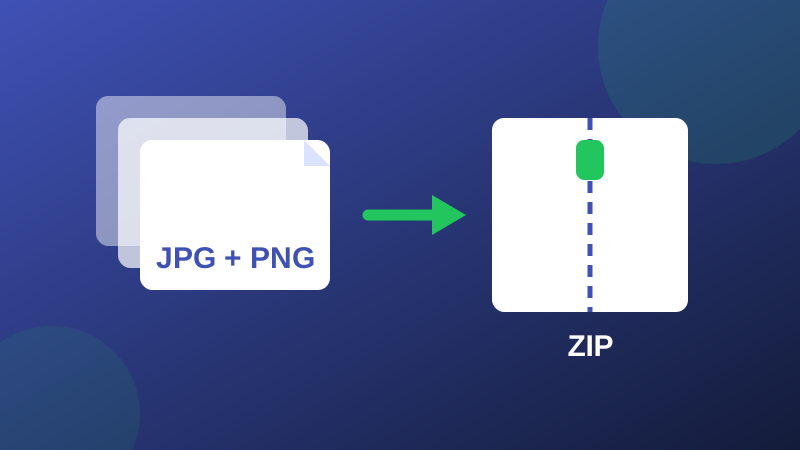
There is no batch magic: the converter performs exactly the same conversion it would do for a single file, repeated for each file in the set, with the same target format and settings throughout. That sameness is the point - one decision, made once, applied consistently. Results are bundled into a single ZIP download, so forty converted files arrive as one file to save instead of forty separate downloads. On ImgBleu the whole job runs in your browser on your device; the files are never uploaded.
The workflow that keeps it safe
- Copy, do not move. Put copies of the files in a working folder and convert the copies. Your originals stay untouched whatever happens.
- Pick the target format by destination. Web delivery: WebP. Universal sharing: JPG. Keeping transparency and fidelity: PNG. The verdicts in our format comparison guide apply unchanged to batches.
- Convert a test file first. Run one image through and open the result. If the format, size and look are right, the other thirty-nine will be too.
- Run the batch and download the ZIP. Drop the set into the Batch Image Converter, choose the format, and take the ZIP.
- Spot-check three. Open the first, middle and last results. Batch problems are systematic - if those three are right, all are.
Batch converting is not batch compressing
The two jobs are cousins, not twins. Converting changes the format (PNG to WebP, HEIC to JPG); compressing keeps the format and shrinks the file. When your files are already in the right format but too heavy, the Bulk Image Compressor is the right tool. When they are the wrong format and too heavy, convert first - a good conversion, like JPG to WebP, usually shrinks them as a side effect.
A word on names: converted files keep their original names with the new extension, so IMG_4021.png becomes IMG_4021.webp. If the set is headed for a website or a shared album, rename before you convert - descriptive names, in the order you want them sorted - because renaming a finished batch means doing the same job twice.
One honest limit: because everything runs on your device, a batch of hundreds of huge photos is bounded by your phone or laptop's memory. Split very large jobs into a few batches and the workflow stays smooth. That is the whole craft: copies in, one decision, a ZIP out, originals untouched.
Frequently asked questions
How many images can I convert in one batch?
There is no counter or quota in the tool: the practical limit is your device's memory, because every file is processed locally in your browser. Dozens of ordinary photos are comfortable; hundreds of huge files are better split into a few batches.
Does batch conversion lower the quality?
Batch conversion applies the same conversion you would get one file at a time - the batching changes the workflow, not the math. Quality depends on the target format and settings you choose, exactly as in single conversion.
Can I mix formats in one batch, like PNG and JPG together?
Yes. The batch converter accepts mixed inputs and converts every file to the one target format you pick, then bundles the results into a single ZIP download.