How to Convert HEIC to JPG on Any Device
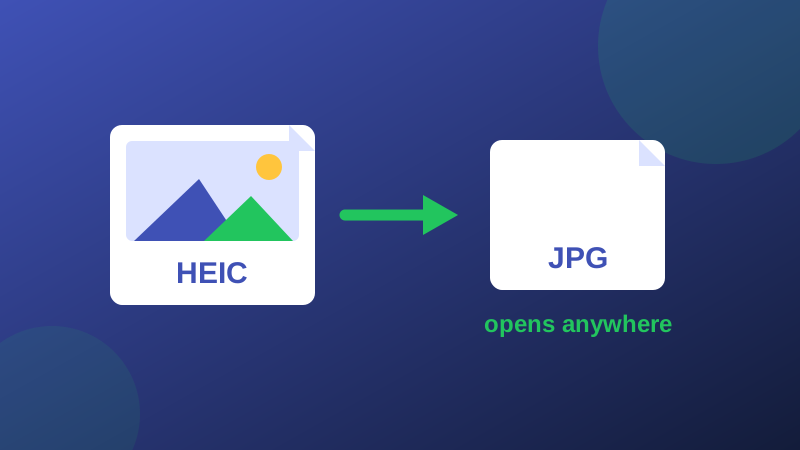
HEIC is a genuinely good format with a genuinely annoying problem: half the world cannot open it. Apple made it the iPhone default because it stores the same photo in about half the space of JPG - then you try to upload that photo to a form, open it on a Windows PC, or send it to an older app, and hit a wall. This guide covers every practical way out, starting with the fastest. The conversion tool below was tested end-to-end on this site with a real HEIC photo before this guide was published.
The fastest fix: convert in your browser
- Open the HEIC to JPG converter and drop the .heic file in. The decoder library loads on demand the first time - give it a few seconds on a slow connection.
- The photo is decoded and re-encoded entirely on your device; the file is never uploaded to a server.
- Download the JPG. Converting several photos at once? The Batch Image Converter turns a whole set into JPGs in one pass, ZIP included.
On the iPhone itself
iOS quietly converts HEIC to JPG in many sharing flows - mailing a photo or sending it through most apps delivers a JPG without you doing anything. What it does not convert is the file itself: copying photos to a computer by cable, or uploading through a browser, can deliver the raw .heic. To stop the problem at the source, open Settings, then Camera, then Formats, and choose Most Compatible: new photos are saved as JPG. The trade is real - JPGs take roughly twice the storage - so many people leave HEIC on and convert only the photos they need to share.
On a computer
On a Mac, open the photo in Preview and use File, Export, choosing JPEG as the format. On Windows, Photos opens HEIC once the free HEIF extension from the Microsoft Store is installed - but plenty of machines never got it, and other software (office suites, older editors, web forms) may still refuse the file even when Photos accepts it. That is why converting to JPG remains the universal answer: a JPG opens everywhere, in everything, including the Compress JPG tool if the converted file needs slimming afterwards.
One conversion note: a Live Photo becomes its still frame as JPG - the short motion clip is not carried across, because JPG has no way to hold it. If the motion matters to you, that is one more reason the HEIC originals stay archived even after every shareable copy has been made.
About quality and originals
Conversion re-encodes the image once, into JPG. At the converter's high quality setting the result is visually indistinguishable from the HEIC in normal viewing. Keep your HEIC originals as the archive - they are smaller and hold the full data - and treat JPGs as the copies you hand out. Convert on demand, share freely, archive in HEIC: that is the workflow that gets you both the storage saving and the compatibility.
Frequently asked questions
Does converting HEIC to JPG lose quality?
A small amount, once: JPG re-encodes the image, and at high quality settings the difference is invisible in normal viewing. Keep the HEIC originals as your masters and treat the JPGs as shareable copies, and nothing that matters is lost.
Why won't my HEIC photos open on Windows?
Windows does not ship with a HEIC decoder in every edition; support arrives through a free HEIF extension that is not always installed. Until it is, a .heic file looks broken to Windows even though the photo inside is fine - converting to JPG removes the dependency entirely.
How do I stop my iPhone saving photos as HEIC?
Open Settings, then Camera, then Formats, and choose Most Compatible. New photos are saved as JPG from then on. Existing HEIC photos stay HEIC - convert the ones you need to share.